
Welcome to the teleCalm Mobile User Trial! We are delighted to have you as a part of our community of early adopters who are helping us improve our service.
As a member of our User Trial Audience, you will have access to the teleCalm Dialer app on the Google Play Store. This app is not visible on the Google Play Store to the general public and cannot be shared with others.
Your loved one will be able to make and receive calls using the teleCalm Dialer app, and you will be able to manage the service remotely using our Caregiver app on your smartphone. Your participation and input are invaluable to us, and we hope you enjoy using the teleCalm Dialer app.
Disclaimer
The teleCalm Dialer app and the teleCalm Mobile service are pre-release products. These products are still under development and have not been fully tested for public use. As an early adopter, you agree to help us improve our products by providing feedback and reporting any issues you encounter. You acknowledge that the pre-release version of the teleCalm Dialer app may have errors, bugs, and other problems that may affect its performance and functionality.teleCalm Mobile Setup Instructions
 If you haven’t yet applied to be part of the teleCalm Mobile User Trial, complete the signup form on the teleCalm Mobile page to be added to the waitlist.
Once you’re approved, you will need to install the teleCalm Dialer pre-release app on your loved one’s Android smartphone and install the teleCalm Caregiver app on your smartphone.
Step 1: Before you begin, we recommend you backup your device using Google’s normal backup process if there is anything on the phone you cannot afford to lose.
Step 2: We HIGHLY recommend you turn off call waiting functionality before installing the teleCalm Dialer. This is because call waiting can cause confusion for the loved one when they are on an active call and another call comes in.
You can disable call waiting on most Android phones by following the basic instructions below. (your phone menus might be different)
- Open the native Android dialer icon
- Tap the menu icon

- Tap Settings
- Tap Call Settings, or Calling Account, or Calls
- Tap on Additional settings
- Tap the indicator next to Call waiting to turn the function off
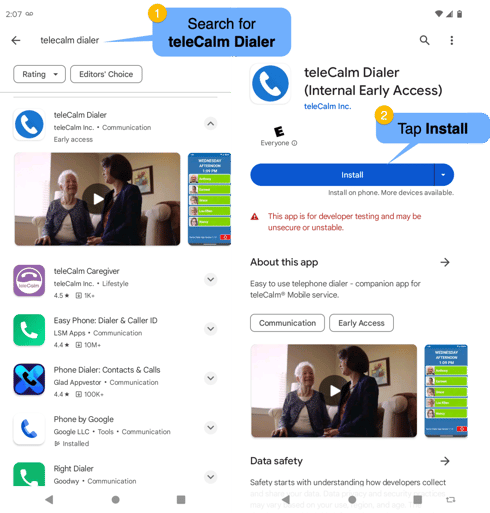
NOTE: If you cannot find the app on Google Play, you may be using a different Google Play account email address from what we have registered for your beta account. Please contact teleCalm Support at 888-701-0411.
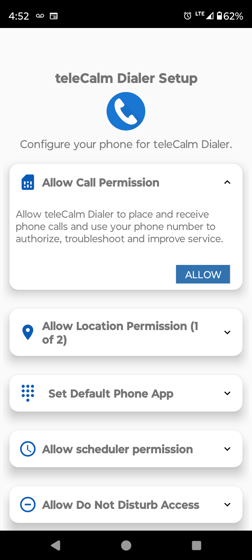
Step 4: Open the Dialer app and follow the prompts to configure your loved one’s phone to use the teleCalm Dialer. All of these settings are required for proper operation.
- Allow Call Permission - This allows the teleCalm Dialer to place and receive phone calls.
- Allow Location Permission - This 2-step process allows the teleCalm Dialer to collect and share the end-user's location to the caregiver(s) in case the end-user gets lost or needs help.
- Set Default Phone App - This sets the teleCalm Dialer as the default dialer for the phone to make and receive calls.
- Allow Scheduler Permission - This is needed to keep the teleCalm Dialer up to date.
- Allow Do Not Disturb Access - This is necessary for the teleCalm Dialer to prevent unwanted calls.
If you accidentally tapped “Don’t Allow,” you can change this later in the phone’s Settings. See Troubleshooting below.
Step 5: Place the teleCalm Dialer in the favorite app area.
- Tap and hold native Android dialer icon
- Drag the icon up overt the Remove option
- Tap and hold teleCalm Dialer icon
- Drag the icon it into the favorites area
Step 6: Your now ready to install the Caregiver app on your iPhone or Android phone and use it to manage the teleCalm Mobile service. If you already have the Caregiver app installed on your phone, please make sure it is the most current version.


Step 7: Log into the Caregiver app using the user-id and password sent to you in your approval email.
Step 8: Add contacts that you want your loved one to be able to call out to. Those are also the only contacts that can call in to your loved one as well.
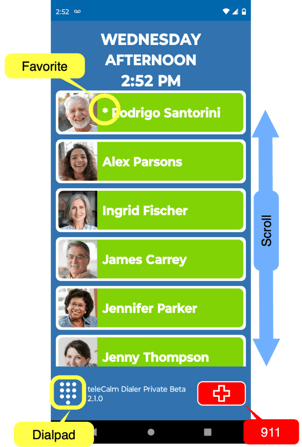
- These contacts will show up as photo dial buttons on the Dialer app, so you might want to add a photo too.
- If you have more contacts than fit on the screen, your loved one can scroll up and down to find the desired contact. They are listed alphabetically by first name.
- Placing an asterisk (*) at the beginning of the first name will mark that contact as a favorite and position it above all other contacts.
- If you turn on Enable Dial Pad on the Settings screen in the Caregiver app, your loved one will be able to dial any phone number, but will only be connected to approved Contacts.
Place test calls to and from the end-user's phone
Make a test call from the caregiver's phone to the end-user's mobile number, confirming:
-
The call rings on their phone.
-
You are able to answer the call and talk back and forth.
-
You are able to hang up the call from the end-user's phone.
- The call shows up on the Caregiver app.
Repeat the steps above, but from the end-user's phone to the caregiver's phone.
How calling and texting work during the trial
During the teleCalm Mobile User Trial, your loved one keeps using their existing mobile number and carrier, but calls are managed by teleCalm rules.
Incoming calls
Calls to your loved one’s mobile number are checked against teleCalm rules and trusted contacts, then allowed or blocked based on your settings.
-
Calls from trusted contacts should ring through normally.
-
All other calls are considered Strangers and will not ring to their phone.
- If voicemail is disabled on the end-user's phone (recommended), then the caller will be given either a busy signal or a message by their carrier.
- If voicemail is not disabled, then the Stranger call will go to the end-user's voicemail as setup by their carrier -- however, the end-user is unable to retrieve these voicemail messages.
Outgoing calls
Outgoing calls can be placed by tapping the contact photo/name on the teleCalm Dialer app, or by using the dial pad (if enabled).
- Phone numbers dialed from the dial pad will only be completed if they are trusted contacts.
- Phone numbers in text messages, web pages, emails, or other apps will not be allowed to complete.
Pre-Release or Beta Features
teleCalm Mobile is in beta, which means:
-
It is a pre-release service, available by invitation only
-
Features may change or improve during your trial
-
You may see occasional bugs or behavior differences from what you expect
-
Feedback from you as a caregiver is especially valuable
-
Some settings available with standard teleCalm Caregiver service (for home phones) may not yet be available in the teleCalm Mobile service.
-
Additional mobile‑specific features may show up that are not part of the teleCalm Caregiver landline-style service.
Your access to the Mobile User Trial is available for a limited time. At the end of the trial, you’ll have the option to stop using the trial or move to the commercial teleCalm Mobile service.